Blogs
change over time -- posts and pages are added and deleted. However, it
can be hard to keep track of all the links that point to URLs that no
longer exist, especially if there are a lot of links to your blog from
other blogs and websites. The Custom Redirects feature allows you to
take an old URL, and point it to a new one.
For example:
Let’s say you have a recipe blog, and one of your most popular posts
is about banana pancakes. A year or so later, you decide you only want
your blog to be about gluten-free recipes, so you go through and delete
all the posts with recipes involving gluten (including the popular
recipe about banana pancakes). However, since your recipe was popular,
other blogs or sites had links pointing to your post. After you remove
the recipe, anyone trying to access the page receives a “Page Not Found -
404” error.
With Custom Redirects, you can enter the old URL that used to lead to
the banana pancake post, and redirect it to another URL (perhaps the
address of a recent post you wrote using gluten-free flour and milk).
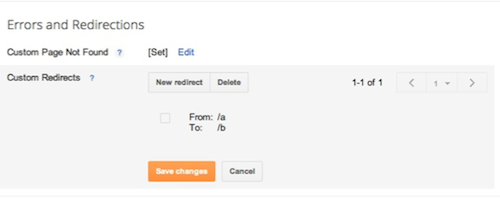
To enter a Custom Redirect, go to Settings | Search Preferences and click Edit next to "Custom Redirects." Enter the old URL in the "Source" field, and the new URL in the "Destination" field. Click Save changes, and you’re done! To add more redirects, select New redirect.


No comments:
Post a Comment